Magnar HCM Disciplinary Action Manual
Complete guide to the disciplinary process — raising a case, investigation, hearing, action determination, approval, acknowledgement, appeals, retention and setup.
Search headings and text across the whole manual.
1. Introduction
The Disciplinary Action module records and manages employee disciplinary matters from beginning to end — reporting an incident, investigating it, holding a hearing where one is needed, deciding what action to take, routing that action for approval, issuing it to the employee, and hearing any appeal that follows.
Every step is recorded against the case, so the file you hold at the end is the file you can produce if the matter is ever questioned.
Availability: Disciplinary Action is a licensed module. If it does not appear in your menu, your licence does not include it — contact your system administrator.
2. Roles & Access
A disciplinary case passes through several pairs of hands. Access is granted on the individual case rather than through a module-wide role, so being able to open one case tells you nothing about any other.
| Role | What they do |
|---|---|
| Case owner | Raises the case and steers it — orders an investigation, schedules a hearing, decides the action, asks the employee to acknowledge it, and closes the case. Whoever creates a case becomes its owner. |
| Investigator | Looks into the incident and files findings with a signature. |
| Hearing chairperson | Chairs the hearing and records what was decided there. |
| Approver | Approves or rejects the recommended action, or decides an appeal. |
| Employee | Reads the action issued against them and answers it, either acknowledging it or appealing it. |
| Administrator | Configures action types, incident categories, SLA policies, approval chains and data retention. |
2.1 How Access is Granted
Access reaches a user in one of three ways:
- The person who creates a case is granted security administration over it as it is created.
- Investigators receive read access when they are assigned, and lose it when their assignment is withdrawn.
- Everyone else is granted access explicitly, by a case security administrator, through the permissions screen on the case.
Two consequences are worth noting. The hearing chairperson holds nothing on the case by design, which is why the details of a hearing are carried in the task they receive rather than through a link to the case. And the employee is never shown who investigated the case or who chaired the hearing — those names are not returned on any screen the employee can reach.
3. The Disciplinary Menu
Navigate to Disciplinary to open the module. The entries that appear depend on what each user has been given access to, so most people see only the part of the module that concerns them.
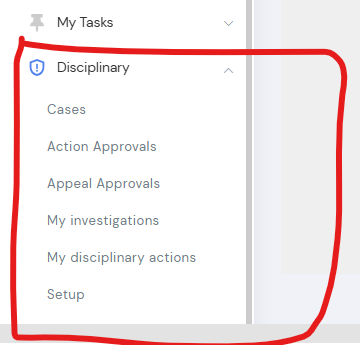
| Menu entry | Description |
|---|---|
| Cases | Every case the user has been given access to. |
| Action Approvals | Disciplinary actions waiting for the user's approval. |
| Appeal Approvals | Appeals waiting for the user's decision. |
| My Investigations | Investigations the user has been assigned to. |
| My Disciplinary Actions | Actions issued against the user, awaiting their answer. |
| Setup | Configuration of the module, for administrators. |
Employees who use self-service see the same entries without Setup, so an employee can reach an action issued against them, and an investigator can reach their assignments, without needing access to the full case list.
4. Case List
Navigate to Disciplinary → Cases to open every case you can see, newest first. Each row shows the case number, the employee, the category, the status, how the case is doing against its service level agreement, and the case owner.
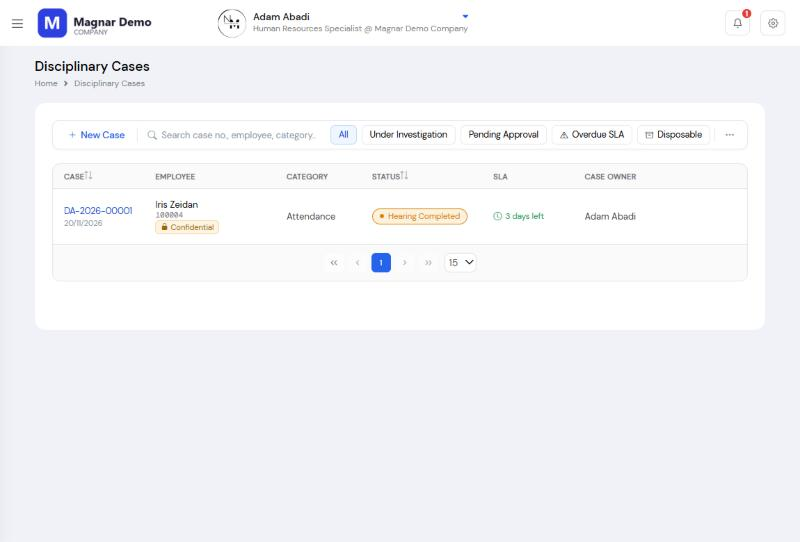
4.1 Filters & Search
The quick filters above the list narrow it:
| Filter | Shows |
|---|---|
| All | Every case you can see. |
| Under Investigation | Cases currently with investigators. |
| Pending Approval | Cases whose action is in the approval chain. |
| Overdue SLA | Open cases that have passed the time allowed for their current status. A case that breached its deadline but has since closed is history rather than work, so it is left out. |
| Disposable | Closed cases old enough to be destroyed. See Section 16 — Data Retention & Disposal. |
The search box matches the case number, the employee's name, the employee's number, the case owner and the category at the same time, so you can type any of them without choosing a field first.
4.2 Case Indicators
| Indicator | Meaning |
|---|---|
| Confidential | The case is sensitive, and its contents must not be discussed outside the people given access to it. |
| Restricted | You can see that the case exists, but not its detail. |
| SLA | Days remaining, or days overdue, against the time allowed for the current status. |
5. Raising a Case
Navigate to Disciplinary → Cases and click + New Case. A case may be raised by anyone with permission to do so, and the person who raises it becomes its owner.
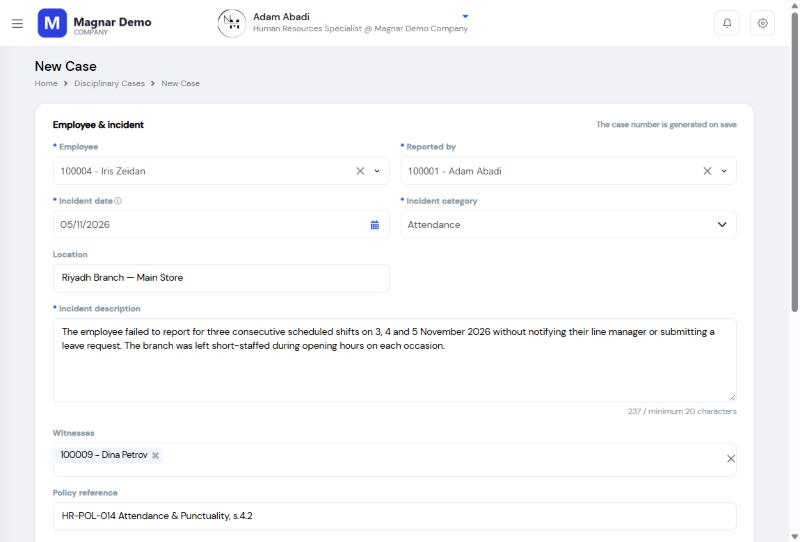
5.1 Employee & Incident
| Field | Description | Required |
|---|---|---|
| Case No. | Generated by the system when the case is first saved, and the reference the case is known by from that point on. Read-only. | Auto |
| Employee | The employee the case concerns | Required |
| Reported by | The person who raised the matter | Required |
| Incident date | When the incident happened. A future date is not accepted. | Required |
| Incident category | What the case is about. Some categories always create confidential cases; where that is so, the confidentiality switch locks on and the form says why. | Required |
| Incident description | An account of what happened, in at least 20 characters. This is what everyone who later works the case will read. | Required |
| Location | Where the incident took place, if it helps place it | Optional |
| Policy reference | The rule or policy the incident is said to breach, where quoting one helps. Up to 256 characters. | Optional |
| Confidential / sensitive | Restricts the case to the people given access to it, and adds a confidentiality warning to the notifications it sends | Optional |
Where the employee already has an open case, the form says so. This is a warning rather than a block — there are legitimate reasons to run two cases at once — but it is worth checking that an existing case is not being duplicated.
5.2 Witnesses & Evidence
Add anyone who saw what happened under Witnesses. You can attach up to five documents under Evidence, and further documents may be added at any later stage, so evidence is not frozen when the case is submitted.
5.3 Saving & Submitting
| Button | What it does |
|---|---|
| Save as draft | Keeps the case private to its author. It is not visible to anyone else and nothing happens until it is submitted. |
| Submit for review | Opens the case properly and moves it to Under Review. |
| Save & submit for review | Does both in one step. |
6. Working a Case
Opening a case shows everything known about it on a single page, divided into four areas.
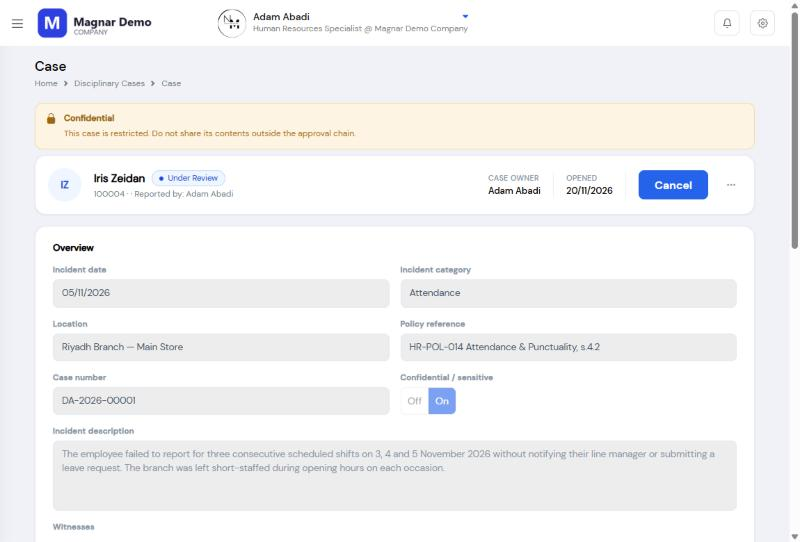
| Area | Contents |
|---|---|
| Overview | The employee, the incident, the category, the owner and the current status. |
| Actions | The four stages of the case, and where each one has reached. |
| Activity | Every action taken on the case, newest first, with who took it and when. |
| Attachments | Every document filed against the case, from any stage. |
6.1 Stages
Investigation, Hearing, Action determination and Appeal run in whatever order the case needs, and none of them is mandatory unless the action eventually chosen requires it. Each one reports its own state:
| State | Meaning |
|---|---|
| Not started | Nothing has been recorded for this stage. |
| In progress | Begun, and still the owner's to change. |
| Awaiting others | Waiting on an investigator or on hearing attendees. |
| Re-opened | Finished once and owed work again — which is what an appeal that reduced an action does to the action stage. |
| Pending approval | With approvers, while the case stays read-only. |
| Completed | Finished, and part of the case record. |
6.2 When a Case is Locked
A case becomes read-only while its action is in the approval chain, because approvers decide on the record as it stood when they were asked. It also locks once an action has been recorded against it, and the investigation locks once a hearing has been held. The page always states which of these applies, and a rejection by an approver re-opens the case.
Leaving Draft is permanent. A draft case keeps its stages available, so you can start an investigation or schedule a hearing straight from one — but doing so moves the case on, and a case that has left Draft can no longer have its incident record changed. The Investigation and Hearing forms both warn you before this happens.
6.3 Activity Timeline
The timeline records what people did rather than the status the case passed through, so it reads as a history of actions — "Draft submitted for review" rather than "Under review." Each entry carries who took the action, when, and any reason or comment given with it. Steps that change no status are recorded too, so withdrawing an investigator, moving a hearing and asking the employee to acknowledge all leave a trace.
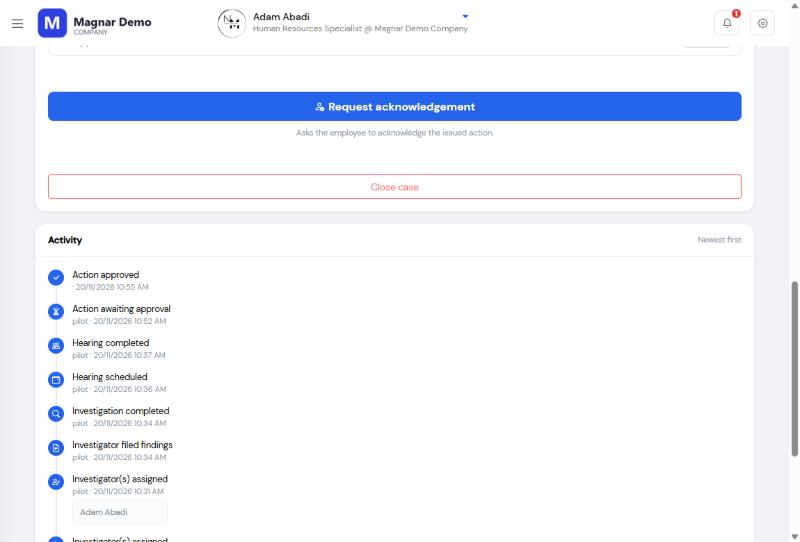
| Group | Recorded activities |
|---|---|
| The case | Draft created, draft submitted for review, case re-opened, case closed |
| Investigation | Investigator(s) assigned, investigation started, investigator withdrawn, investigator filed findings, investigation completed |
| Hearing | Hearing scheduled, hearing rescheduled, hearing completed |
| Action | Action awaiting approval, action approved, action rejected, submission failed |
| Acknowledgement & appeal | Acknowledgement requested, employee acknowledged, appeal filed, appeal submitted for decision, appeal decided |
7. Investigation
An investigation establishes the facts. It runs in one of two ways — the case owner writes the findings themselves, or investigators are assigned and each files their own account. Open the case and select Investigation.
7.1 Assigning Investigators
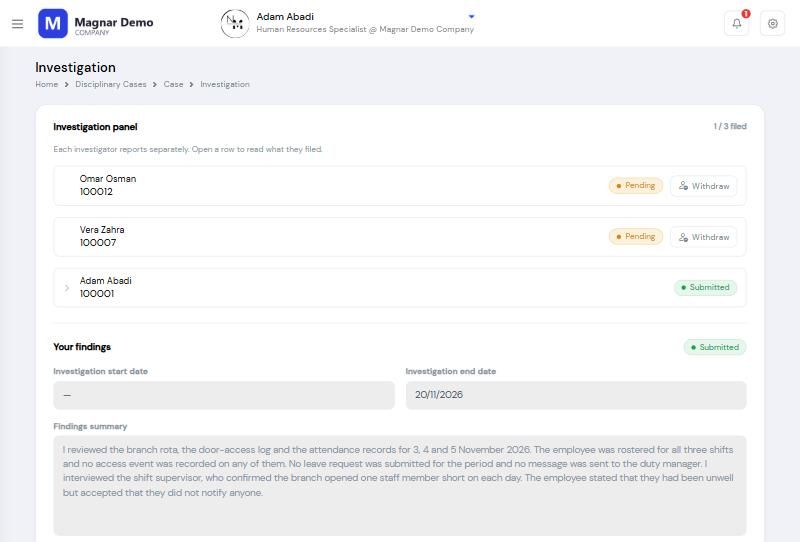
Add up to five investigators under Investigation panel. One of them may be marked as the lead. Each investigator files their own findings and signs their own account, and one investigator cannot see or change another's. Saving the panel notifies everyone on it.
Assigning an investigator lets them read the case. That access can be withdrawn later through the permissions screen, and using Withdraw this investigator removes it automatically.
7.2 Filing Findings
Investigators reach their work through Disciplinary → My Investigations. Opening an assignment shows what is alleged and who the case concerns, without naming the other people working on it.
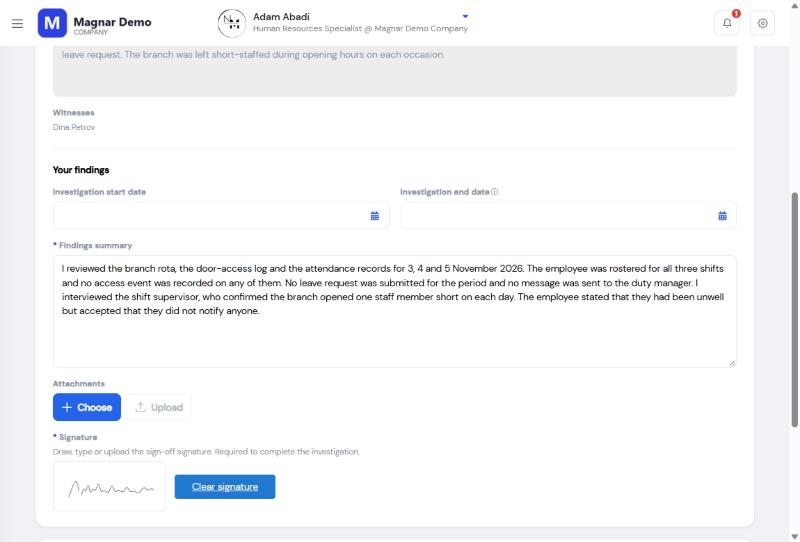
| Field | Description | Required |
|---|---|---|
| Findings | The investigator's account of what they established | Required |
| Witness statements & evidence | One supporting document, where there is one | Optional |
| Signature | Drawn, typed or uploaded. Required before findings can be filed. | Required |
Save as draft keeps the account open for further work. Submit findings files it — after which it cannot be changed.
7.3 Closing the Investigation
Complete investigation closes the stage. Not every investigator need have filed, but at least one must have. The case returns to Under Review and the investigators are told that their stage is closed.
8. Hearing
A hearing gives the employee the opportunity to answer the allegation in person before any action is decided. Open the case and select Hearing.
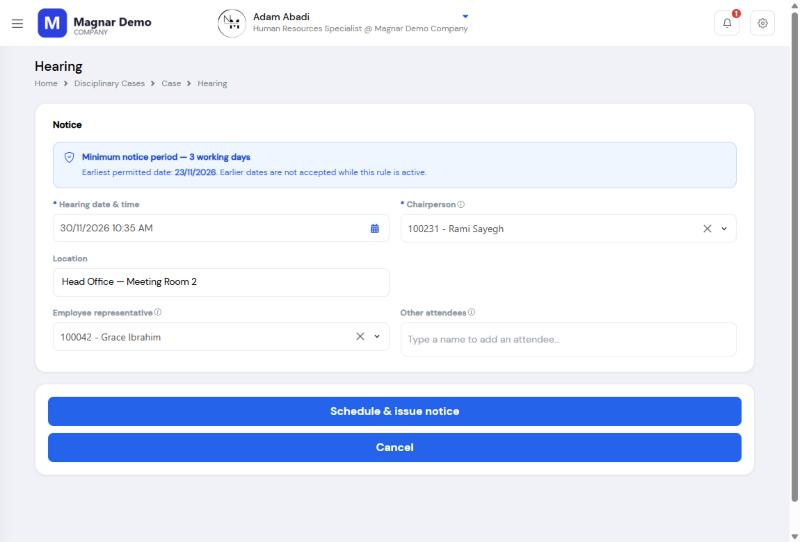
8.1 Scheduling
| Field | Description | Required |
|---|---|---|
| Hearing date & time | When the hearing will be held | Required |
| Location | Where it will be held, or a meeting link | Optional |
| Chairperson | Who will chair it. The employee the case concerns cannot chair their own hearing. Where your company has configured a chairperson pool, the picker is narrowed to it. | Required |
| Employee representative | A union representative or peer, where one applies | Optional |
| Other attendees | Anyone else attending, each with their role. The employee, the chairperson and the representative are added automatically. | Optional |
Clicking Schedule & issue notice books the hearing and gives every person named on it a task carrying the case number, the date, the place and who else is attending. On a confidential case, that task also carries the confidentiality warning.
A hearing cannot be set sooner than the minimum notice period configured for your company, counted in working days against the employee's own calendar. The form shows the earliest date it will accept and refuses anything sooner. See Section 15.1 — Settings.
8.2 Moving a Hearing
Reschedule takes a new date and a reason. Every attendee's task is updated, and the move is kept in the reschedule history, so the case shows that the hearing moved and why.
8.3 Recording the Hearing
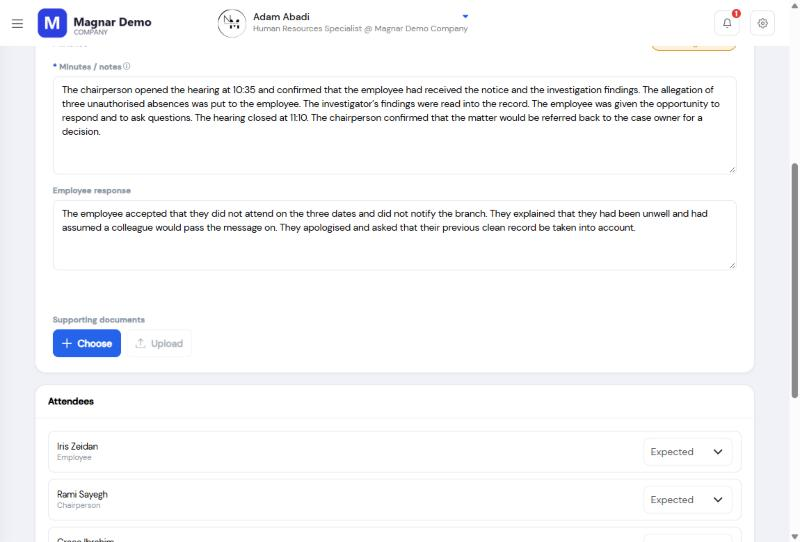
| Field | Description | Required |
|---|---|---|
| Attendance | Each attendee is marked Attended, Apologies or Absent | Optional |
| Minutes | What was discussed and decided at the hearing. Required before the hearing can be completed, though a draft may be saved without them. | Required |
| Employee response | What the employee said in answer to the allegation | Optional |
Save as draft leaves the hearing open for the record to be finished later. Complete hearing closes it and hands the case back to its owner, who decides what it means — the hearing itself does not impose an action.
9. Action Determination
Action determination is where the case owner records what should happen and sends it for approval. Open the case and select Action determination.
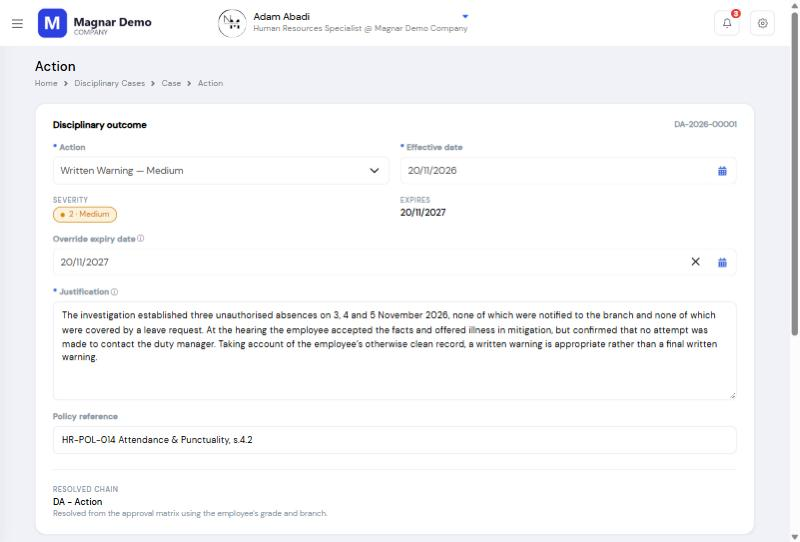
9.1 Recording the Action
| Field | Description | Required |
|---|---|---|
| Action | The kind of disciplinary action, such as a warning or a suspension | Required |
| Escalation advisory | Read-only — the employee's active prior actions within the look-back period, so that a repeat matter is not treated as a first one | Auto |
| Justification | The reasoning for the action. It is reproduced word for word in the letter issued to the employee, so write it for them to read. | Required |
| Effective date | When the action takes effect | Required |
| Expiry date | When a time-bound action lapses. Choosing a time-bound action type fills this with the date its configured period gives, and you can then move that date earlier or later — but never to on or before the effective date. Leaving it empty uses the period configured on the action type. | Optional |
| Suspension days | The length of a suspension, where the action is one. Between 1 and 365 days. | Optional |
| Pay impact | No pay impact, unpaid suspension or partial pay, with a note for payroll | Optional |
| Policy reference | The rule or policy the action is issued under. Shown on the approval task and to the employee alongside the action. | Optional |
What you record under Pay impact is passed to payroll as an instruction. No deduction is calculated in this module.
Save recommendation keeps the action open for further work. Submit for approval sends it into the approval chain.
9.2 The Approval Chain
The chain is resolved from the approval matrix using the employee's grade and branch, and is shown to you before the action is submitted. Where no rule covers the case, the form says so and the action cannot be submitted until an administrator adds one.
Submitting freezes the case. Any investigation or hearing still open is closed at that point, because what the approvers see must be what the case contained when they were asked.
10. Action Approval
Approvers find their work under Disciplinary → Action Approvals. The list shows who the case concerns, what is proposed, who submitted it and when it arrived.
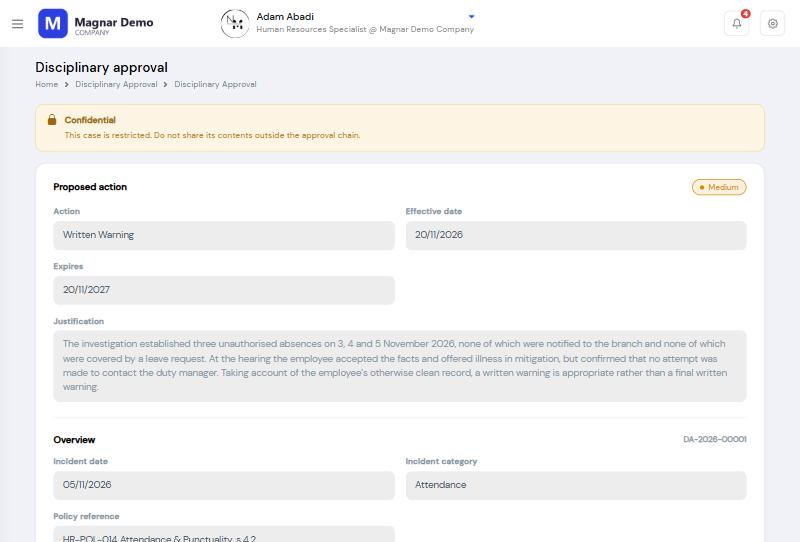
| Decision | What happens |
|---|---|
| Approve | Once every level has approved, the action is issued immediately and its letter is produced. The case owner then decides when to ask the employee to acknowledge it. |
| Reject | The case re-opens at Under Review. The investigation and hearing that fed the rejected action become history, and a fresh cycle can begin. A comment is required when rejecting, and is recorded against both the task and the case. |
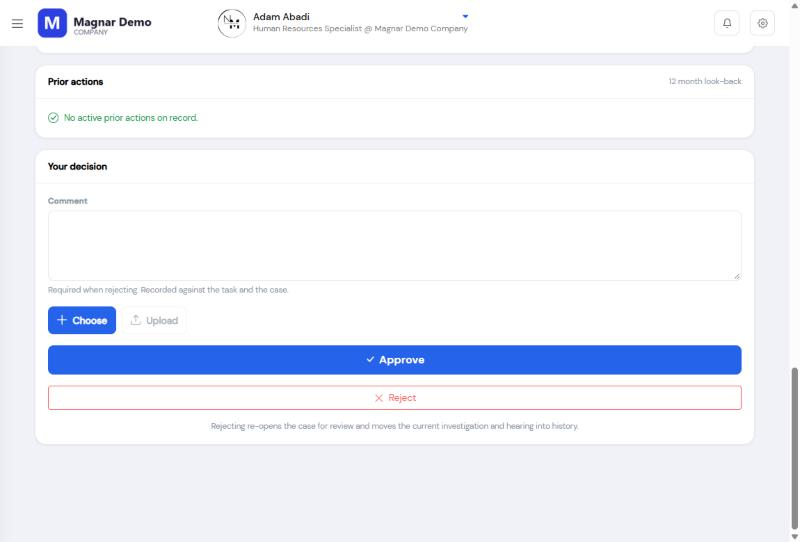
Where an appeal reduced an earlier action and the owner recorded a lighter one in its place, the task says so — naming the action it replaces and what the appeal decided — so that it is not read as a first action against a clean record.
Where the case is confidential, the task says so, and its contents must not be shared outside the approval chain.
11. Acknowledgement
An approved action has been decided but not yet put to the person it concerns. The case owner does that from the case with Request acknowledgement, which notifies the employee and places the action under their My Disciplinary Actions.
Asking the employee to acknowledge is itself a decision. Once the request has gone out, the answer belongs to the employee, and you can no longer file an appeal on their behalf. Where an appeal is to be filed for an employee who cannot do it themselves, it must be filed first.
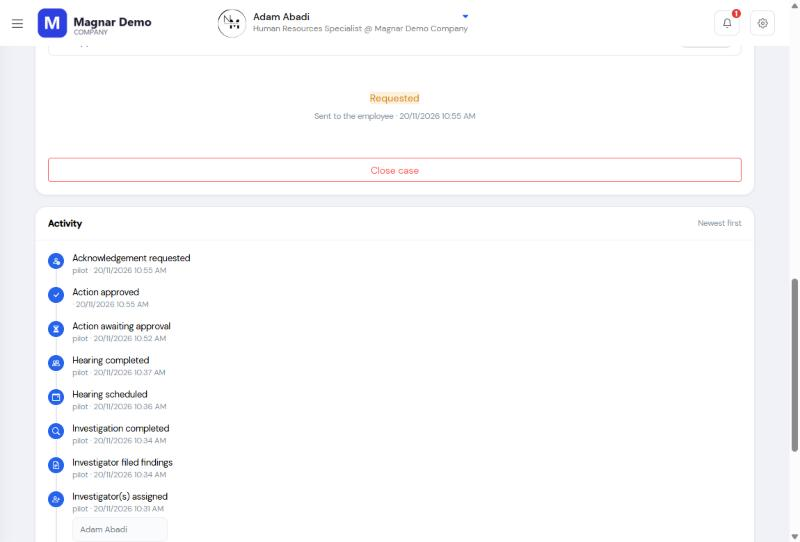
The employee opens My Disciplinary Actions, selects Read and respond, downloads the letter and answers in one of two ways. The employee is asked once, and both answers are final.
| Answer | What it does | Requires |
|---|---|---|
| Acknowledge receipt | Records that the action was received, closes the case, and leaves nothing further to be done | Signature |
| Appeal the action | Records an appeal, re-opens the case, and notifies the case owner, who submits it for decision | Written grounds |
Signing records receipt, not agreement. An employee who disagrees with the action appeals it instead. The signature is stored with the date and time it was given, and with a fingerprint of the letter it was signed against.
12. Appeals
An appeal challenges an issued action, and it reaches the system by one of two routes.
12.1 The Employee Appeals
The employee selects Appeal the action on their answer form and gives their grounds. The appeal is filed but not yet submitted — the case owner sends it to the appeal chain with Submit for decision.
12.2 Filing on the Employee's Behalf
Where an employee has no system access, the case owner files for them from the case. Open the case, select Appeal and click File on behalf, entering what the employee said in their words. The appeal remains the employee's; the record simply notes who entered it.
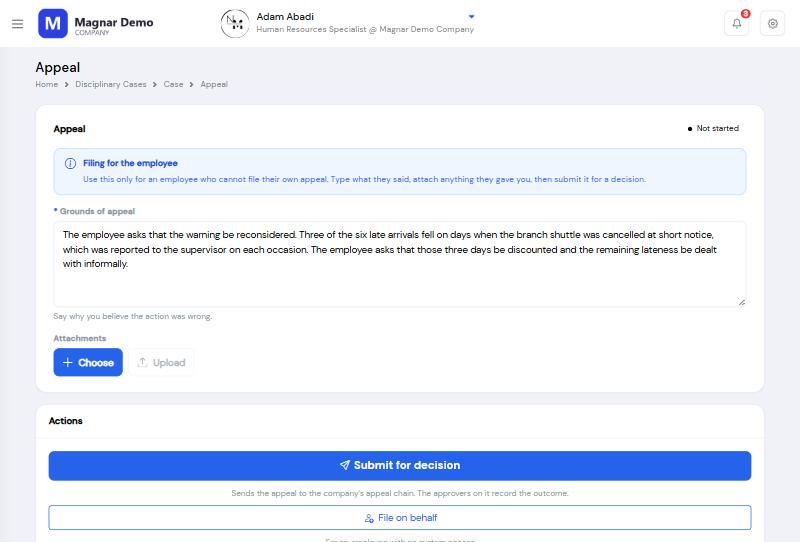
This route is open only while the employee has not been asked to acknowledge the action. Once they have been asked, the answer is theirs to give, and the form states why the option is closed.
12.3 Deciding an Appeal
Appeal approvers find their work under Disciplinary → Appeal Approvals. An appeal is decided by the chain configured for appeals, which is normally more senior than the one that approved the action.
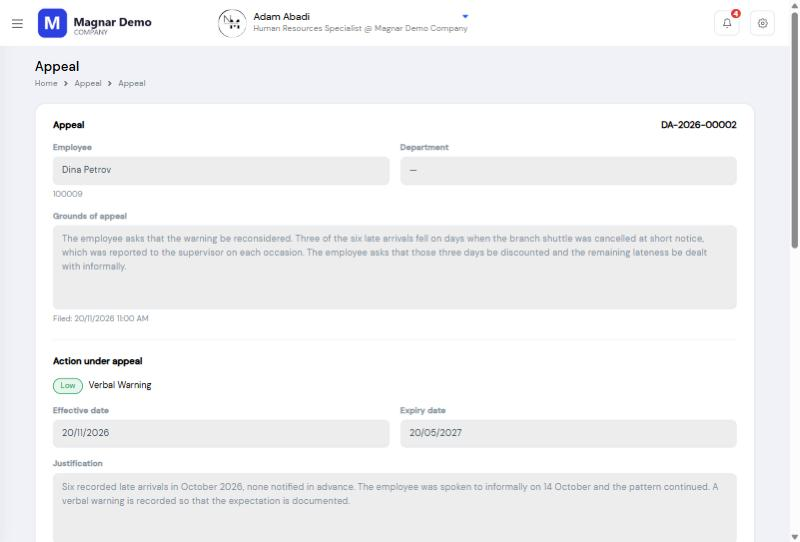
| Outcome | What happens |
|---|---|
| Upheld | The action was right and stands. The case closes. |
| Reduced | The action was too severe. The case returns to its owner to record a lighter action in its place, and the action stage shows as Re-opened until they do. The replacement is recommended and approved in the ordinary way. |
| Overturned | The action is withdrawn and the case closes. |
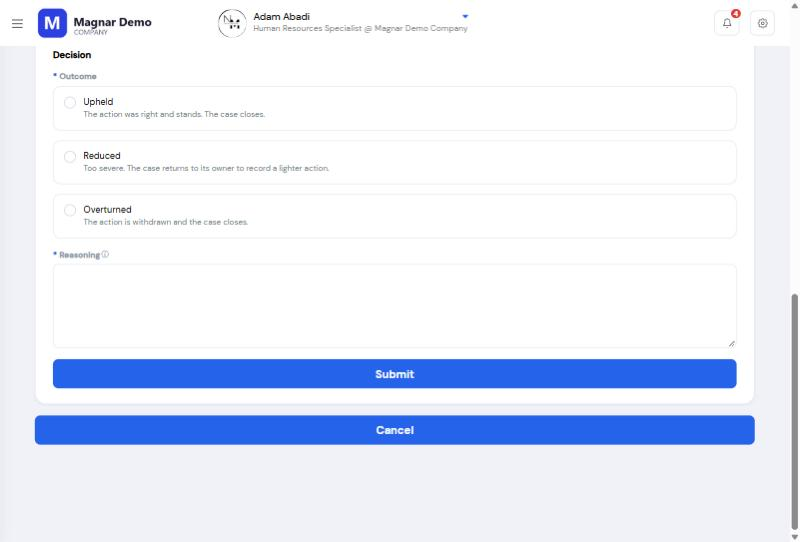
A comment is required when recording an appeal decision. The reasoning you record is shown to the employee alongside the outcome, so write it for them.
13. Closing a Case
Most cases close by themselves. Acknowledging an action closes the case behind it, and an appeal that is upheld or overturned does the same. Otherwise the owner closes it with Close case and a closure reason, which is recorded on the case and shown in its timeline.
Closing a case with no action recorded is how a matter is dismissed — the case stays on file with its reason, and nothing is deleted.
Where anything is still outstanding, the form says so before the case closes:
- An investigation that has not been completed ends where it stands.
- A hearing that has been scheduled but not held is cancelled in effect.
- A recommended action still in draft will never be issued.
- An employee who has not yet answered loses the opportunity to.
14. Notifications
The module notifies people when something needs them, both in the application and by email. Messages are sent in each recipient's own language, whatever language the person who triggered them was using, and carry a link to the form the recipient needs.
| Recipient | Notified when |
|---|---|
| Investigators | They are assigned to an investigation, and when an investigation they were on is closed |
| Case owners | An investigator files findings, and when an action is appealed |
| Hearing attendees | A hearing they are named on is scheduled or moved |
| Hearing chairpersons | The hearing they chaired is recorded. This message carries the details rather than a link, because the case is not theirs to open. |
| Employees | An action is put to them to acknowledge, and when their appeal is decided |
| Approvers | An approval is waiting on them |
15. Disciplinary Setup
Navigate to Disciplinary → Setup to configure the module. Everything configured here applies to the current company only.
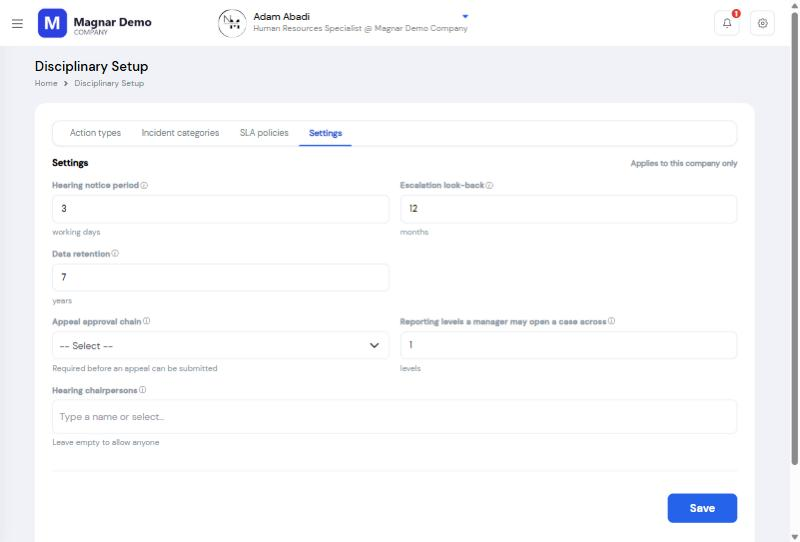
15.1 Settings
| Setting | Description | Default |
|---|---|---|
| Hearing notice period | How much notice a hearing must give before it can be held, counted in working days | 3 days |
| Escalation look-back | How far back prior actions are counted when advising on severity | 12 months |
| Reporting levels a manager may open a case across | How far down the reporting line the employee pickers reach when a manager raises a case. 1 is their direct reports, 2 adds the level below. Employee relations is not restricted by this. | 1 level |
| Data retention | How long a closed case is kept before it can be destroyed | 7 years |
| Appeal approval chain | The workflow template that decides appeals | Required |
Appeals cannot be submitted until the appeal approval chain is set. Set it before the module goes live, not when the first appeal arrives.
15.2 Action Types
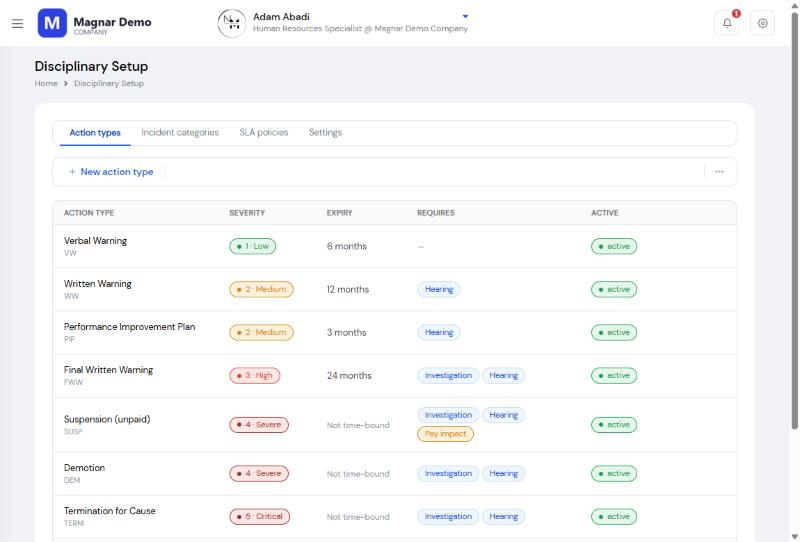
An action type is a kind of disciplinary action your organization issues, such as a verbal warning, a written warning or a suspension. Each one carries its severity, whether it is time-bound and for how long, whether it requires an investigation, a hearing or a pay impact before it can be used, the approval chain it runs, and the letter it produces.
15.3 Incident Categories
Incident categories describe what a case can be about. A category can be set to create confidential cases automatically, which keeps sensitive matters restricted without relying on the person raising the case to remember.
15.4 SLA Policies
One policy per case status sets how many working days a case may sit at that status, and who is escalated to when it does not move.
| Escalation target | Who is notified |
|---|---|
| Case Owner | The person who raised the case |
| Case Owner's Manager | The case owner's line manager |
| Department Head | The head of the department the case belongs to |
| HR Director | The HR director |
15.5 Hearing Chairpersons
The pool of employees eligible to chair a hearing. Leaving it empty allows anyone to be chosen as chairperson.
16. Data Retention & Disposal
Disciplinary records are kept for a fixed period after the case closes — seven years unless your organization has set otherwise. The period exists so that a case can be produced if it is ever questioned, and so that it does not follow an employee indefinitely once it cannot be.
Once a closed case is older than the retention period it appears under the Disposable filter on the case list, with a column showing how long ago it was closed.
Destroy permanently removes the case file and with it the investigation, the hearing, the action, the appeal, every attachment and the audit history. It cannot be undone, and it is restricted to administrators — holding a case does not confer the right to destroy it.
Cases are never deleted automatically. Reaching the retention period only makes a case eligible for disposal; someone must choose to destroy it.
17. Frequently Asked Questions
Why can I see that a case exists but not open it?
The case is marked Restricted to you. Access is granted per case by a case security administrator — usually the case owner. Ask them to grant you access through the permissions screen on the case.
Can the employee see who investigated their case?
No. The names of investigators and of the hearing chairperson are never returned on any screen the employee can reach.
I withdrew an investigator. Do they still have access?
No. Using Withdraw this investigator removes their read access to the case automatically, and the withdrawal is recorded in the activity timeline.
Why can't I edit the case any more?
A case leaves Draft the moment you start an investigation, schedule a hearing or submit it for review, and its incident record cannot be changed after that. The case also becomes read-only while its action is with approvers, and once an action has been recorded against it. The page always states which applies.
Do I have to run an investigation and a hearing?
Not unless the action you eventually choose requires them. The four stages run in whatever order the case needs. An action type can be configured to require an investigation, a hearing, or both, before it can be used.
Must every investigator file findings before I can close the investigation?
No — but at least one must have. Complete investigation closes the stage and returns the case to Under Review.
The approval chain says no rule covers this case. What now?
The chain is resolved from the approval matrix using the employee's grade and branch. Where no rule matches, the action cannot be submitted until an administrator adds one. Contact your system administrator.
An approver rejected the action. Is the case lost?
No. The case re-opens at Under Review. The investigation and hearing that fed the rejected action become history, and you can begin a fresh cycle.
Does the module deduct pay for an unpaid suspension?
No. What you record under Pay impact is passed to payroll as an instruction. No deduction is calculated in the Disciplinary Action module.
The employee has no system access. How do they appeal?
The case owner files on their behalf from the case — Appeal → File on behalf. This is only possible before the employee has been asked to acknowledge the action, so file the appeal first.
The employee signed. Does that mean they agree?
No — signing records receipt, not agreement. An employee who disagrees appeals instead. The signature is stored with its date and time and a fingerprint of the letter it was signed against.
An appeal was reduced. How do I record the lighter action?
The case returns to you and the action stage shows as Re-opened. Record the replacement under Action determination and submit it in the ordinary way. The approval task will say which action it replaces and what the appeal decided.
For payroll, leave, attendance and the rest of the platform, see the Magnar HCM HR & Payroll Administrator User Manual.